Showing posts with label Facebook. Show all posts
New Facebook Chat Codes: colored chatting
Now on Facebook you can type anything in colored characters. Facebook recently made changes to it's chatting feature, Facebook provides some codes to type anything in color, Just copy any characters code You like to write and paste them in your chat box and click enter and colored character will be displayed.


New Facebook Chat Codes
Codes of A-Z
Below are codes of A-Z which you can use in Facebook chat. You can create your on words with this codes.
[[107015582669715]] = A
[[116067591741123]] = B
[[115602405121532]] = C
[[112542438763744]] = D
[[115430438474268]] = E
[[109225112442557]] = F
[[111532845537326]] = G
[[111356865552629]] = H
[[109294689102123]] = I
[[126362660720793]] = J
[[116651741681944]] = K
[[115807951764667]] = L
[[106596672714242]] = M
[[108634132504932]] = N
[[116564658357124]] = O
[[111669128857397]] = P
[[107061805996548]] = Q
[[106699962703083]] = R
[[115927268419031]] = S
[[112669162092780]] = T
[[108983579135532]] = U
[[107023745999320]] = V
[[106678406038354]] = W
[[116740548336581]] = X
[[112416755444217]] = Y
[[165724910215]] = Z
[[116067591741123]] = B
[[115602405121532]] = C
[[112542438763744]] = D
[[115430438474268]] = E
[[109225112442557]] = F
[[111532845537326]] = G
[[111356865552629]] = H
[[109294689102123]] = I
[[126362660720793]] = J
[[116651741681944]] = K
[[115807951764667]] = L
[[106596672714242]] = M
[[108634132504932]] = N
[[116564658357124]] = O
[[111669128857397]] = P
[[107061805996548]] = Q
[[106699962703083]] = R
[[115927268419031]] = S
[[112669162092780]] = T
[[108983579135532]] = U
[[107023745999320]] = V
[[106678406038354]] = W
[[116740548336581]] = X
[[112416755444217]] = Y
[[165724910215]] = Z
How to Use Above Codes
- Wanna create hi . So pick up codes of H and I .
- Which is [[111356865552629]] [[109294689102123]]
- Make sure there is space in between any two codes or else it will not work.
If you can like this post then please like our Facebook page.
How to recover/regain Hacked Facebook Account
As of today Facebook hacking and account phishing is common problem because Facebook has biggest social network worldwide and hackers usually hack any account to get some sensitive data for wrong purpose. If you are one of whose account has been hacked or did you forget your password then Facebook provides a simple way to recover/regain your account.


How to Recover/Regain Hacked Facebook Account
- At first go to account recovery page
- Here you will see message like above just click on My Account Is Compromised, and they will take you to another page asking you to identify
- Here enter your email or phone number or username. You can also enter your name and your friends name.
- Now just check one’s that’s your account and press this Is My Account/Continue.

- Now Facebook will simply ask you to enter the Current or Old Password, if your account was compromised than surely your new password will be changed so enter the current if that does not work than try to enter the old one which you changed earlier.
- If your old password is accepted than you will have option to get your reset code on your mobile or email
- Now you can enter your new password.
- Also report for any phishing attack at phish@fb.com
How to Pre Schedule Status Update on Facebook
Officialy Facebook now give the option to pre schedule updates for page admins. Now page administrator's can schedule posts in advance up to next 6 months, adding feature that were previously only available in third party apps. With help of below multi-step process you can schedule your updates.


 Here you can either change the time, publish your post immediately, or cancel it altogether. Enjoy :)
How to Pre-Schedule Your Status Update
1. At first log-in to your Facebook fan page and click inside your page's status update area,
2. Now click on small grey clock icon will appear in the lower left-hand corner.
3. Now click "Add Year" link from within the dropdown menu, select the year in which you want to post the update,
4. Then click "Add Month" and select the month you want to update to go live,
5. Now click "Add Day" and enter the date,
6. Now click on "Add Hour" and then "Add minute" of the day to post
7. Finally click on "schedule"
7. Finally click on "schedule"
Once Facebook saves your update, you’ll see this popup box,
How to see or reschedule your scheduled post
To see or reschedule your scheduled posts, scroll up to the top of your page and click "Edit Page > Use Activity Log"
Now your scheduled posts will display.
Here you can either change the time, publish your post immediately, or cancel it altogether. Enjoy :)
Must read : How to See Who's Unfriended You on Facebook
Tag :
Facebook,
Social Networking
How to See Who's Unfriended You on Facebook

Adding Unfriend Finder Extension
1. The extension can be available here with full installation guide. If you are using Google Chrome, it will install automatically but In the latest version of Google Chrome you can't install it directly because recently Google changed the way to add extensions that are not in the Chrome web store to your browser. So, to install it follow these steps,
- Download the extension file from the website and save it to your PC
- Now on chrome go to Tools > Extensions
- Locate the extension file on your computer and drag the file onto the Extensions page
- When dialog box is pop-up click on Install
If you are using Mozilla Firefox, You will have to first install the Greasemonkey- add on, after adding Greasemonkey you will be able to install Unfriend Finder script.
2. After installation is finished you need to restart your browser
3. Now go to Facebook and log-in to your account
4. On the top right menu you will see one more tab which is "Unfriends"
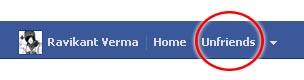
And one more option "Unfriends" in your favorites list.

Advantages of this plug-in
Unfriend - When someone unfriends you a numbered notification will appear above the unfriends tab it also provide the date and time you were unfriended.
Deactivations - It will also alert you when someone deactivated and reactivated his/her profile.
Friend requests - It will show your pending requests, and give you info on who ignored or cancelled your request.
Having any problem then leave your comment below.
Also Read :
Turn Chat Sign-in Off by Default on Facebook
Hello visitors, I'm once again with a new simple but interesting Facebook trick. It's true that we do spend lot of time on Facebook for chatting with our friends and relatives but sometimes we can't stand endless chat when we're browsing our status update, Today I'm sharing this another coot trick to turn off chat when you sing-in by default.


How to turn off chat by default on Facebook
Just follow these simple steps,
1. First off all login to your Facebook account.
2. Here you will find setting icon from the right button on Facebook, Image refer below,
3. If you wish to turn off chat for all friends simply click on "Turn off chat"
4. If you want more advanced option for turning off chat then click on "Advanced setting"
5. When box will pops-up you will see the options below,
6. Here you will see these three options
- First option is turn on chat for all friends except (In the box below, you can type the name of the people whom you don't want to chat)
- Second option is turn on chat for only some friends (In the box below, you can type the name of those some people whom you want to chat)
- And the third option is turn off chat for all friends.
I hope these trick help you to make the better your Facebook experience.
How to Permanently Delete Your Facebook Account
If you are sick of Facebook or if you are spending large amounts of time on this site than you can cancel your account, Facebook allows you to temporarily deactivate your account which will hide all your information on Facebook from others that means no one will be able to access your information on Facebook But this does not permanently delete your Facebook account, In this article we will guide you on how to permanently delete a Facebook account.


- Steps to Permanently Deleting Your Facebook Account
1. At first login to your Facebook account.
2. Now go to Facebook permanent account deletion page and click on Delete My Account

3. Now when it pops up follow the steps such as entering your password and fill out a captcha code

After submitting the account deletion process successfully you will get an email from Facebook saying “Your account will be deleted in 14 days” For 14 days after you delete your account, Facebook retains your data in case you wish to reverse your decision. If you don’t log in to Facebook for 14 days, your account will be permanently deleted.
- E-Mail Method
Tag :
Facebook,
Social Networking
How To Identify Facebook Fake Profile

Facebook is largest social media company in the world, It has about 750 million profiles and at least one million should be fake, There is no official way to identify a fake profile but the following tips might help you to identify whether the profile is a fake one.
I prepared some tips to identify fake profile:
- Fake profiles have many friends around in thousands from all over the world
- Incomplete profile info
- Almost 80 percent of fake profiles either only females
- You can't find more pictures of her/him as shown in profile picture
- Fake profile generally use photos of sexy models, celebrity or photos copied from image search engine
- Fake profile owner never reply your massages
- No privacy setting for anything
- few states update and comments
Now see this infographic:

Tag :
Facebook,
Social Networking
How To Remove Facebook Timeline

Remove Timeline in Chrome
Step 1- Go to following link to download extension(Download extension by using Google Chrome)
Step 2- Click continue

Step 3- After downloading is finished click on "Add"

Restart the browser after installation
Remove Timeline in Mozilla firefox
Step 1- Go to following link to download extension(download extension by using Mozilla Firefox)
Step 2- Click on OK


Step 2- Click on OK

Step 3 - Click install button

Restart the browser after installation and you will see timeline is disabled in your profile, Enjoy your old Profile interface.


